Spotify's Artist Profile Protection is here, and DistroKid is the first distributor to build a connection to it!
Artist Profile Protection is a new Spotify tool that you can turn on and manage using Spotify for Artists.
When it’s on, you’ll get a notification whenever new music is sent to Spotify under your artist name, so you can review each release and remove yourself from any that aren’t yours.
If you want even more protection, you can also block releases, so nothing goes live until you approve it in Spotify for Artists. We built a connection with Spotify, so you can turn on this setting and still let your DistroKid releases go straight through.
How it works
Artist Profile Protection has two settings, which you can choose in Spotify for Artists:
- Review releases (the default): You get a notification whenever a release is sent to Spotify under your artist name. All releases go live unless you remove yourself.
- Block releases (turn on in advanced settings): You get notified about new releases, and need to manually approve them in Spotify for Artists before they go live. If you connect DistroKid, your releases can skip that extra approval.
When you connect your DistroKid account to Spotify (steps below), we securely retrieve your secret artist key from Spotify, which lets your DistroKid account bypass the release block.
Anything you send from your DistroKid account will go live without another approval, while releases from anyone else would still require your sign-off.
Don't have Spotify for Artists yet? You can instantly register your Spotify artist page through your DistroKid account.
How to connect DistroKid to Spotify’s Artist Profile Protection
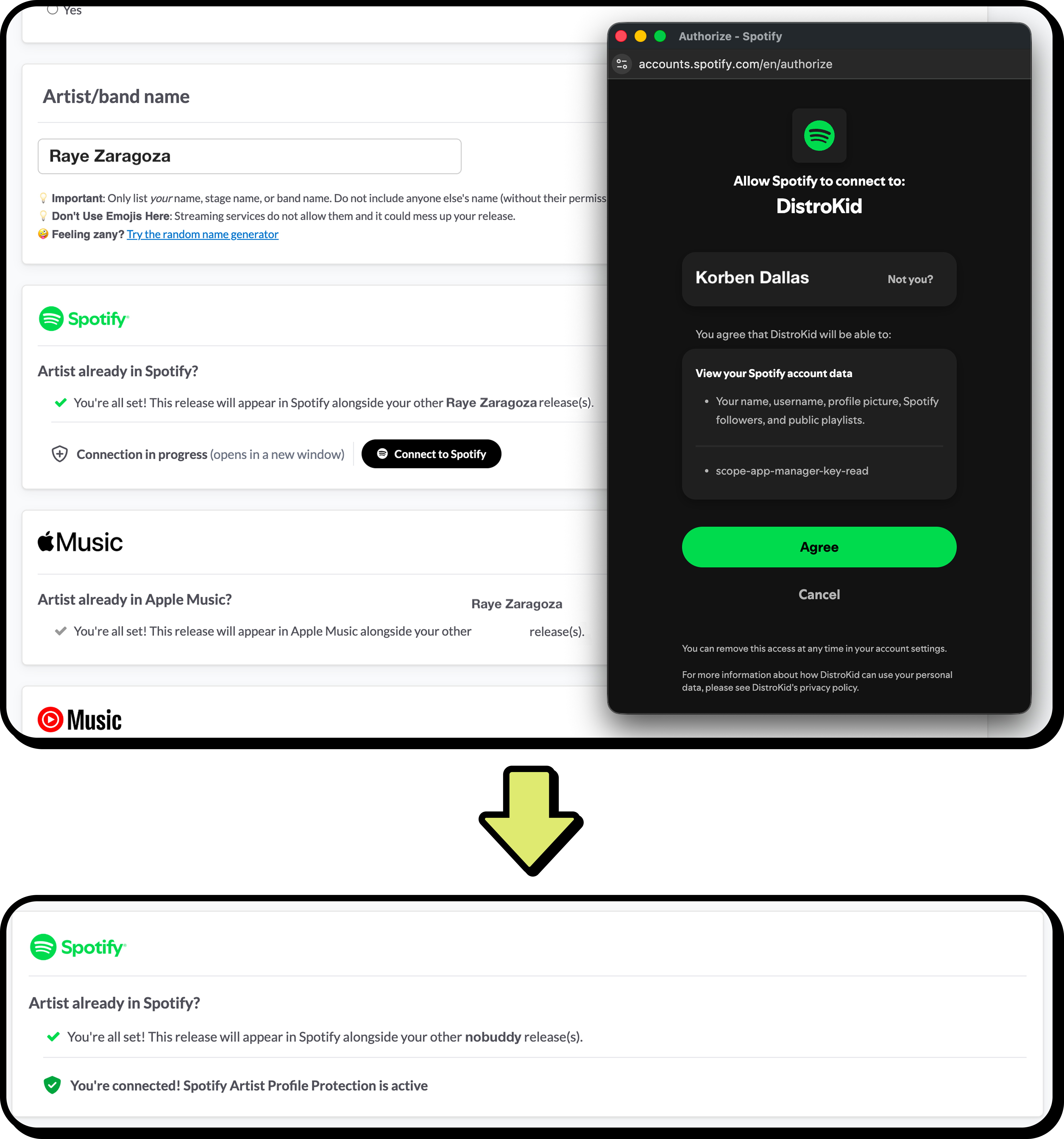
If you select block releases, follow these quick steps to let DistroKid securely connect to Spotify’s Artist Profile Protection:
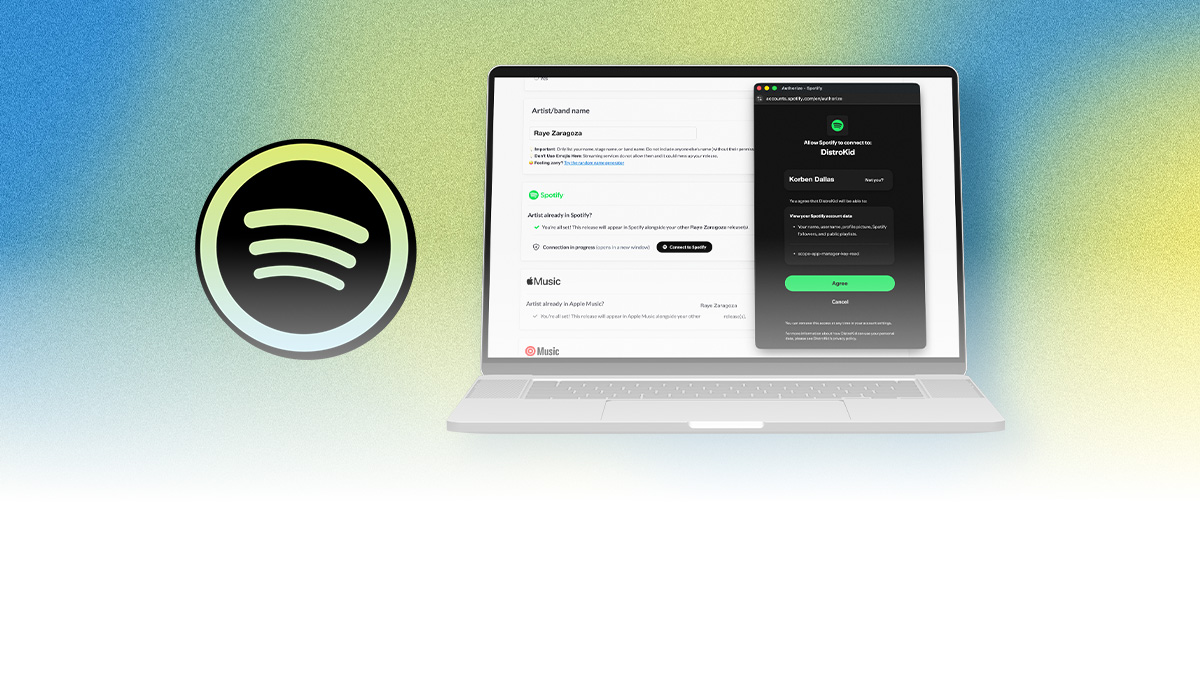
- On the upload form, in the "Artist already in Spotify?" section, select or confirm your Spotify artist profile.
- When Connect to Spotify appears beneath your selected profile, click it.
- A separate Spotify window will open. Sign in with a Spotify account that has Admin or Editor access to your Spotify for Artists team, then authorize DistroKid to retrieve your artist key.
- Once the connection succeeds, you'll get a confirmation on the upload form. Finish uploading your release, and DistroKid will save your artist key for future uploads.
Have at it!